Vector Illustrations Back to School Creative Potential
The shift from sketchy notes to polished digital assets has never been more intuitive. Vector illustrations back to school offer a dedicated set of graphics that capture the energy of a new term—books, pencils, apples, buses, and study scenes—all built in a format that keeps each shape crisp at any size. For anyone who communicates visually, this pack is a practical springboard. The real advantage lies not in the sheer quantity of icons, but in how easily you can repurpose every element across posters, social posts, handouts, and websites without losing clarity.
Why Vector Files Matter for Everyday Creative Work
Raster images become fuzzy when enlarged, but vector files—such as EPS and AI—store artwork as mathematical paths. This means you can scale a tiny backpack icon up to billboard dimensions and it remains razor sharp. For busy professionals, this eliminates the need to re-create graphics for different outputs. Open the file, edit, and export. That simplicity saves hours when deadlines are tight.
Beyond scalability, vector files allow direct color editing. With organized layers, you can select any shape—say, the binding of a book or the leaf in an apple—and change its fill to match a brand palette. This level of control is especially valuable for marketers and small business owners who need consistency across print and digital touchpoints. The included JPG preview is a quick reference, but the real work happens inside the EPS and AI files.
Inside the Pack: What the Vector Collection Offers
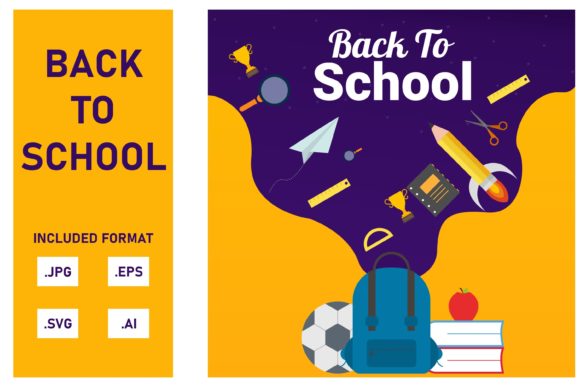
The set contains 100 resizable vector shapes centered on the back-to-school theme. Each object is grouped in organized layers, so you can hide, recolor, or rearrange elements without disturbing the rest. The file structure mirrors a well-kept toolbox: everything you need is labeled and ready.
- Icons and objects – classic school supplies such as pencils, rulers, stacks of books, graduation caps, globes, and lunch boxes.
- Text elements and banners – ribbons, star badges, and chalkboard-style frames that work well for announcements.
- Characters and accessories – simple student silhouettes, backpacks, and classroom furniture that add a human touch.
- Abstract motifs – dots, lines, and burst shapes for backgrounds or emphasis.
Because layers are named, you can turn a busy composition into a minimal design in seconds. If you only need a single pencil icon, you do not have to sort through a mess of ungrouped paths. This clarity appeals to both seasoned designers and those who are new to vector editing.
Designers and Creative Agencies
Speed up client projects by starting from a proven base. Instead of sketching a book stack from scratch, drag in the vector illustration and adjust proportions to fit a brochure or website hero section. The consistent stroke style across all 100 shapes makes it easy to build a unified look. You can also combine school elements with other vector assets to create a custom classroom scene for an e-learning landing page.
Educators and School Administrators
Create newsletters, parent handouts, or bulletin board decorations without needing expensive software skills. Open the AI file, change colors to match school spirit colors, and print at any size. The clarity of vector graphics ensures that even large posters stay legible from across a hallway. Teachers can also pull icons for lesson slide decks, keeping visual aids cohesive.
Small Business Owners and Entrepreneurs
A tutoring center or retail shop selling school supplies can use these illustrations in email campaigns, social media graphics, and in-store signs. The ability to recolor the vector files means you can match your brand identity within minutes. For a lunchbox company, swapping the default apple red to your exact brand shade reinforces recognition. Since the files are editable, you can also remove elements you do not need, keeping the design focused.
Freelancers and Side Hustlers
Building a themed content series for back-to-school season? These vector illustrations give you a head start. Write a blog post about organization tips and pair it with a vector of a tidy desk. Edit the EPS in free tools like Inkscape if you do not own Illustrator, so the pack remains accessible regardless of budget. The high resolution of the output (since vectors are resolution-independent) makes your graphics look professional on Retina screens.
Practical Tips for Getting the Most from the Vector Files
Color changes are straightforward, but a little planning goes a long way. Before you start editing, duplicate the file so you always have the original palette intact. In the AI file, the layers panel shows groups like “book stack” or “apple group.” Click the group, then select a single path and apply a new swatch. For consistency, build a small color palette of 3–5 hues and apply them across all illustrations you plan to use together.
If you need to create a scene—say, a classroom with desks, a blackboard, and a teacher—open a new document and drag the vector elements from the illustrated collection onto your artboard. Use the align tools in your vector software to arrange them neatly. Because the shapes are scalable, you can make the blackboard the largest element and place smaller items around it without distortion.
Export options depend on your software. Most vector editors let you save as PNG for web, PDF for print, or SVG for direct web usage. The included JPG is fine for quick previews, but always export from the vector file when you need maximum quality. Resize the canvas to your exact needs—there is no pixel grid to constrain you.
Creative Directions beyond the Obvious
While the pack is themed for school, you can adapt the icons for broader uses. The globe icon works for travel topics. The book stack can represent knowledge or literacy in any industry. The apple becomes a symbol for health or education. By changing only the color, a school bus icon transforms into a delivery vehicle for a logistics mailer. This flexibility makes the 100 shapes a long-term resource, not just a one-season purchase.
For social media, try creating an animated GIF by duplicating a vector object across frames. A pencil moving across a notebook, for example, can be built by shifting the pencil layer slightly in each frame. Because the vectors stay sharp, the animation looks clean without aliasing.
Posters and flyers for school events benefit from layered vector compositions. Use the banner element as a headline background, place a character next to it, and scatter a few small icons (stars, apples) around the edges. The organized layers let you adjust the depth of each item without searching through hundreds of paths.
Maintaining Consistency and Quality across Projects
One common pitfall is mixing vector styles—some illustrations with thick outlines, others with thin ones. The school pack uses a uniform stroke weight, which keeps everything harmonious. If you add your own vector elements later, match their stroke thickness to the existing ones so the final piece looks like one cohesive set. The same applies to color: use the same hue for all outlines or decide on a flat color without outlines for a modern look.
Because the files come as EPS and AI, you can open them in Adobe Illustrator, CorelDRAW, Affinity Designer, or even free alternatives like Inkscape. Always check that your software supports layers if you want to preserve the organization. If you only need the JPG, you lose editing ability, but the vector formats are what give you full control.
Examples of Real-World Applications
A local library used the pack to redesign their children’s reading program flyer. They selected a vector of an open book, changed its color to the library’s green, and added a text banner on top. The flyer was printed at A3 size and looked sharp. A freelance content creator used the pencil and notebook icons to create a YouTube thumbnail series about study tips. She grouped three icons, duplicated them with alternating colors, and arranged them in a row. The result was a clean header that stood out in search results.
An e-learning startup used the globe and graduation cap vectors in their onboarding slides. They resized the cap to fit into a circular button and added a call-to-action. Because the vectors were layered, they could quickly test different button backgrounds without redrawing anything. In each case, the core benefit remained: speed, clarity, and adaptability.
Why This Pack Answers Common Creative Pain Points
The biggest frustration for non-designers is discovering that a graphic cannot be resized or recolored without quality loss. This collection removes that worry. The 100 shapes are ready to scale, and the organized layers make editing feel less like a puzzle. Whether you are a hobbyist assembling a holiday card or a marketing lead producing a campaign, the vector format gives you a professional outcome with minimal effort. The included JPG offers a quick view, but the EPS and AI files are where the real value sits—openable, editable, and resizable without degrading.
For those who worry about technical barriers, rest assured: changing a color in a vector file is often a single click on the fill swatch. The instructions that come with the download (e.g., “Thanks For Downloading….”) usually include basic guidance, but the logic is intuitive enough for most users to experiment. Start with one element, adjust it, and you will quickly see how the whole system works.
Vector illustrations back to school open up a world of on-brand, sharp, and flexible design. The pack respects your time by providing ready-made shapes that you can treat as building blocks. All you need is a few minutes in a vector editor, and your project gains a polished, cohesive look that resonates with audiences from kindergarten teachers to corporate training departments.